Channels
Put your Quote Agent on your website chat, a hosted quote form and your phone line, connect an existing agent, or ask Ikora to set it all up.
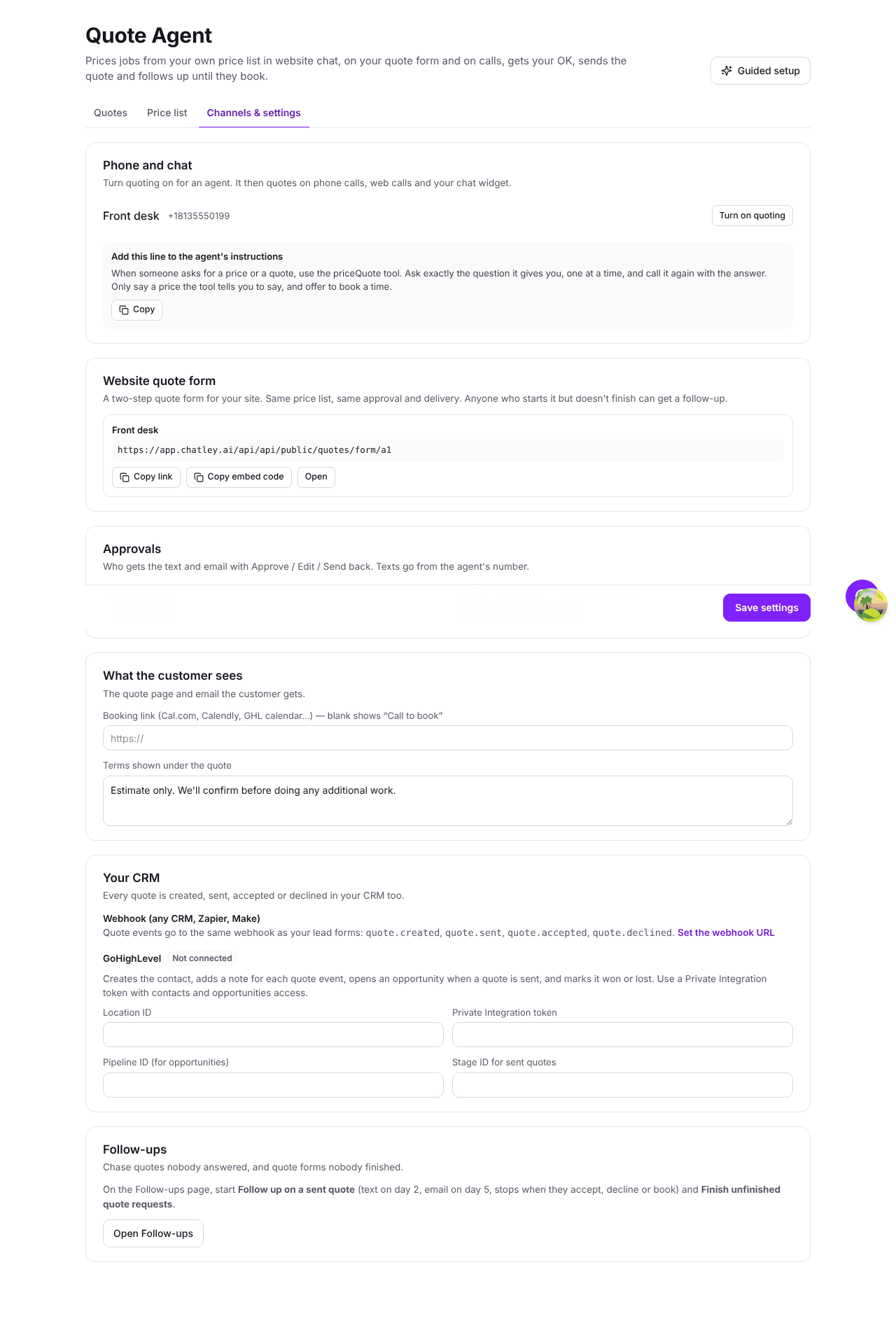
One Quote Agent and one price list serve every channel. A quote looks the same — and comes to you the same way — whether it started in chat, on the form or on a call. Find everything below under Quote Agent → Channels & settings.
Website chat
Guided setup turns on the website chat for your Quote Agent and gives you its code.
Paste the Website chat code just before </body> on every page where you want
the chat to appear. Visitors can type their question, or talk to the agent by voice
from the same window.
If you connected an existing agent, turn its chat on from the agent's Widget tab to get the code.
Quote form
Most customers ask for prices on your website. The quote form is a hosted page that needs no setup beyond your price list:
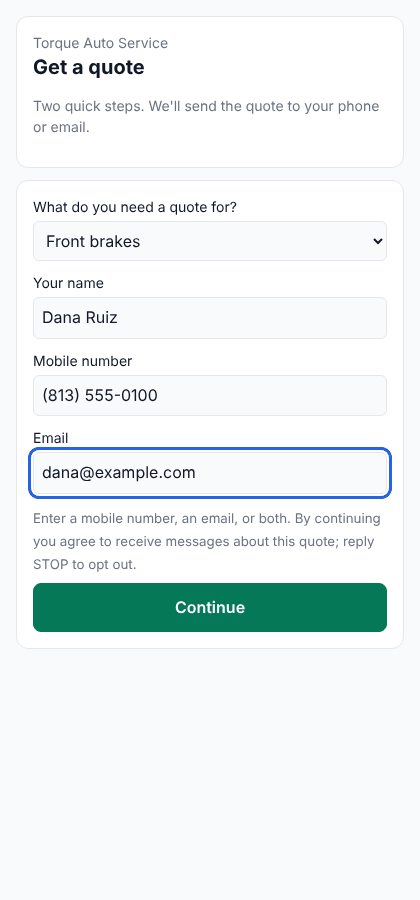
- Get a quote — the customer picks a job and enters their name and a mobile number, an email, or both.
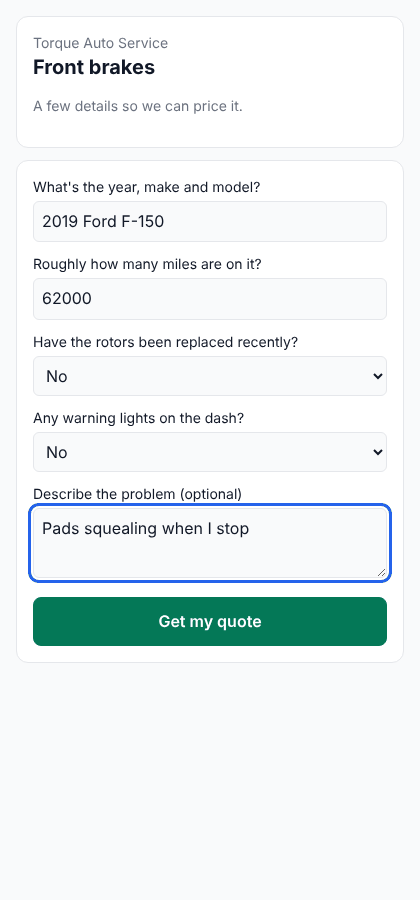
- A few details — the questions your price list sets for that job, plus an optional description of the problem.
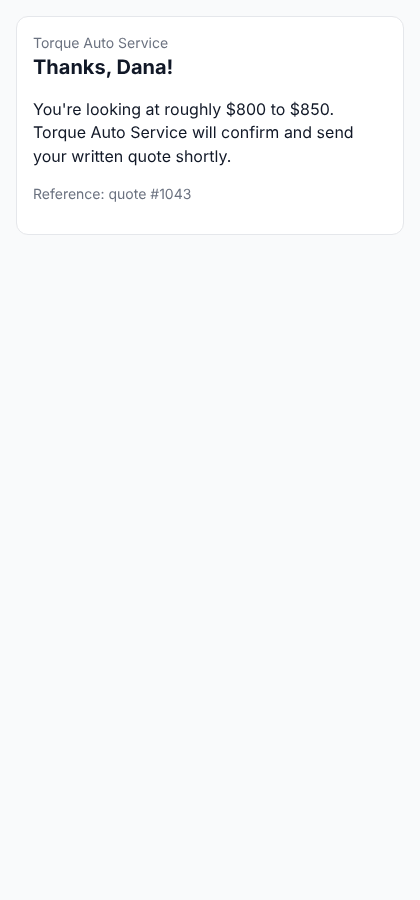
- Thanks — the customer sees a rough range ("You're looking at roughly $800 to $850") or, for jobs you send straight away, the exact price. The written quote follows by email and text.
| Step 1 | Step 2 | Done |
|---|---|---|
 |  |  |
Use the form in two ways:
- Link — copy the Quote form link for a "Get a quote" button, an email signature, a social profile or a QR code.
- Embed — copy the Embed code to place the form inside one of your pages:
<iframe src="YOUR-QUOTE-FORM-LINK" title="Get a quote"
  style="width:100%;max-width:640px;height:760px;border:0"></iframe>
If someone fills in step 1 but never finishes, the Finish unfinished quote requests follow-up can text and then call them.
Phone
Give your Quote Agent a phone number (from the agent's page) and callers can ask for quotes by phone. The agent asks the same questions, says the rounded range, and offers to book a time. You can also forward your existing business line to the agent — see Inbound calls.
Use an agent you already have
To add quoting to an agent that already answers your phone or chat:
- In Channels & settings → Phone and chat, choose the agent and click Turn on quoting.
- Copy the line shown under Add this line to the agent's instructions into the agent's instructions and publish it:
When someone asks for a price or a quote, use the priceQuote tool. Ask exactly the question it gives you, one at a time, and call it again with the answer. Only say a price the tool tells you to say, and offer to book a time.
Agents created by guided setup already have this.
Set it up by asking Ikora
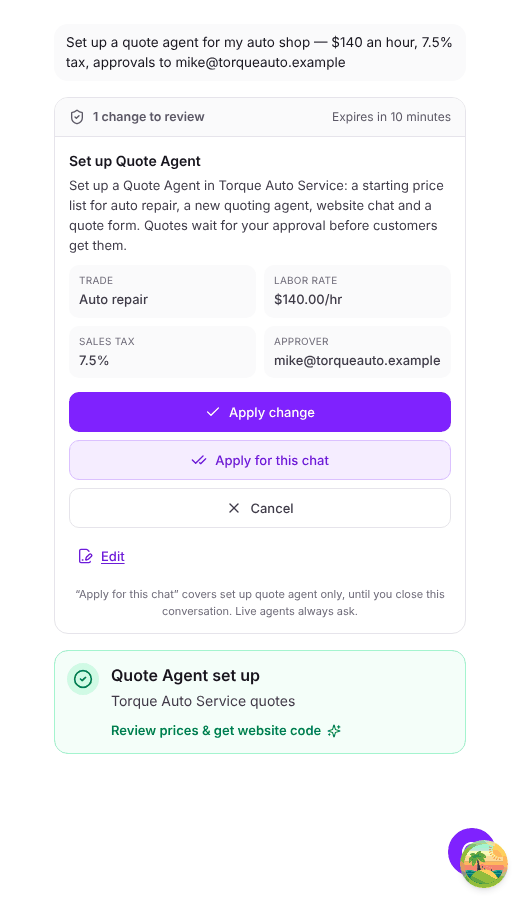
Ikora can build the whole thing from one message, for example:
Set up a quote agent for my auto shop — $140 an hour, 7.5% tax, approvals to mike@torqueauto.example
Ikora asks for anything it's missing — usually just your trade and where approvals should go — then shows an approval card with the trade, labor rate, tax and approver. Click Apply change and it saves a starting price list, creates the agent, connects pricing and turns on your website chat. Then open Quote Agent to check the prices, copy your codes and try the form.