Phone numbers
Manage the phone numbers your agents use for calls, texts, and emergency service.
Your workspace's Phone numbers page lists the numbers your agents answer and place calls from. Each number supports calls, texts and emergency (E911) service.
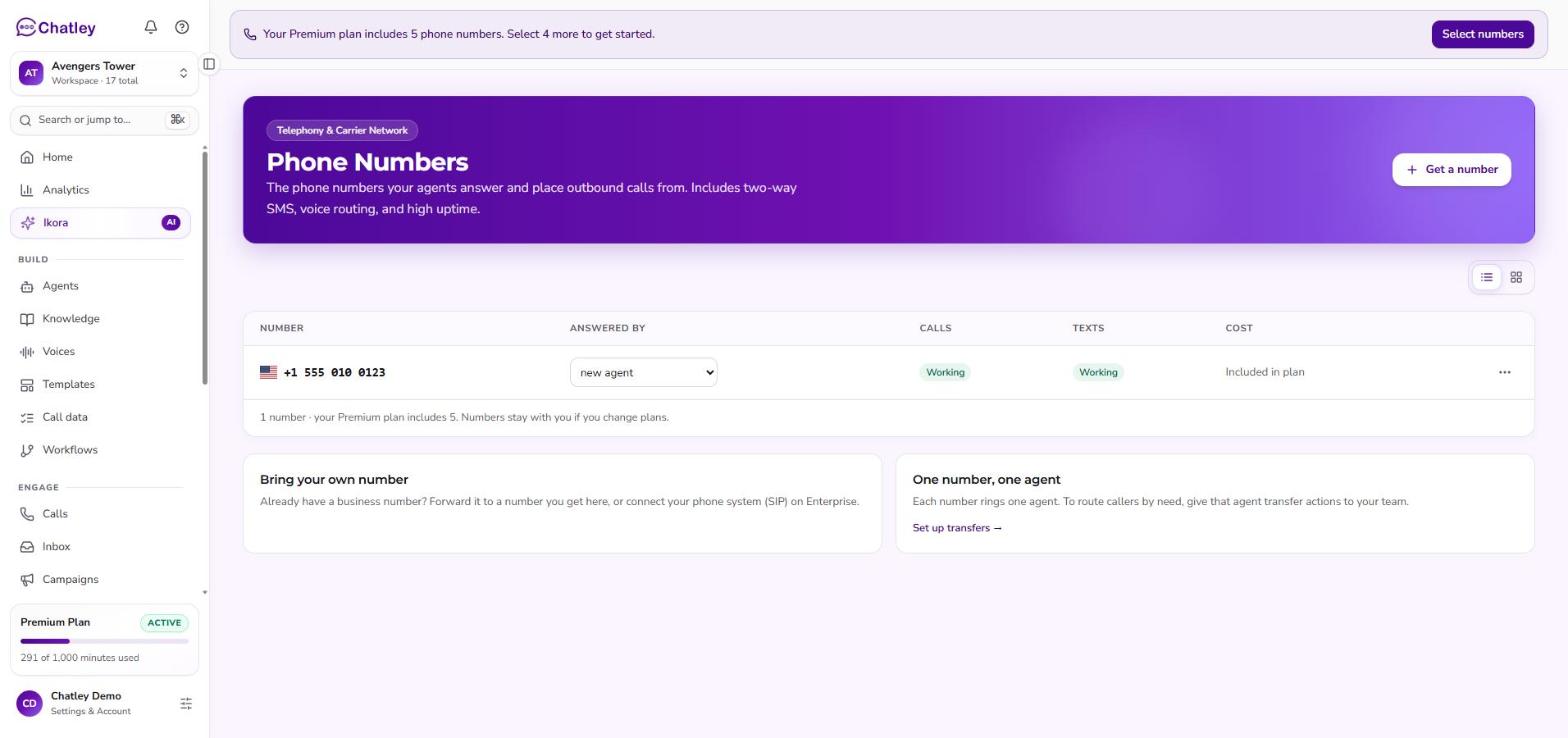
The Phone numbers page.
What the list shows
| Column | Meaning |
|---|---|
| Number | The phone number. |
| Answered by | The agent that picks up calls to it. |
| Calls / Texts | Whether each is switched on for the number. |
| Cost | What it costs. Numbers on your plan read Included in plan. |
One number, one agent. A number is answered by a single agent. To change who answers it, open the agent's Phone & SMS tab.
Bring your own number
Already have a number with another provider? Choose Bring your own number and follow the steps to connect it. See Inbound.
Who can manage numbers
The account owner or a member with billing-management permission can buy and release numbers. If you do not have that permission, the page explains who manages numbers for your account. You can still assign an existing number to an agent from that agent's Phone & SMS settings.
Get a number
- Open Phone numbers under Setup in the workspace.
- Choose Get a number.
- Select an available number and complete the purchase flow.
- Open the agent that should use the number and assign it in Phone & SMS.
Available numbers and prices depend on what is offered to your account. Review the displayed price and terms before confirming a purchase.
Assign or release a number
Assign an available number in the agent's Phone & SMS settings. An agent needs an assigned number to receive phone calls or place real phone calls from that number. You can change the assignment from the same settings.
To remove a number from your account, use the release action on the Phone numbers page. Check the confirmation carefully: releasing a number can interrupt the calls and texts that depend on it.
US business texting may require carrier registration before texts can be sent. See Texting registration.