Integrations
Connect Chatley to your calendar, helpdesk, telephony, automation, and AI providers — plus developer API keys.
Integrations connect Chatley to the tools you already use. You connect an account once from your workspace, and your agents can use it during calls — booking into your calendar, raising a support ticket, or running your own numbers and provider keys.
The same area is where you manage your own Chatley API keys.
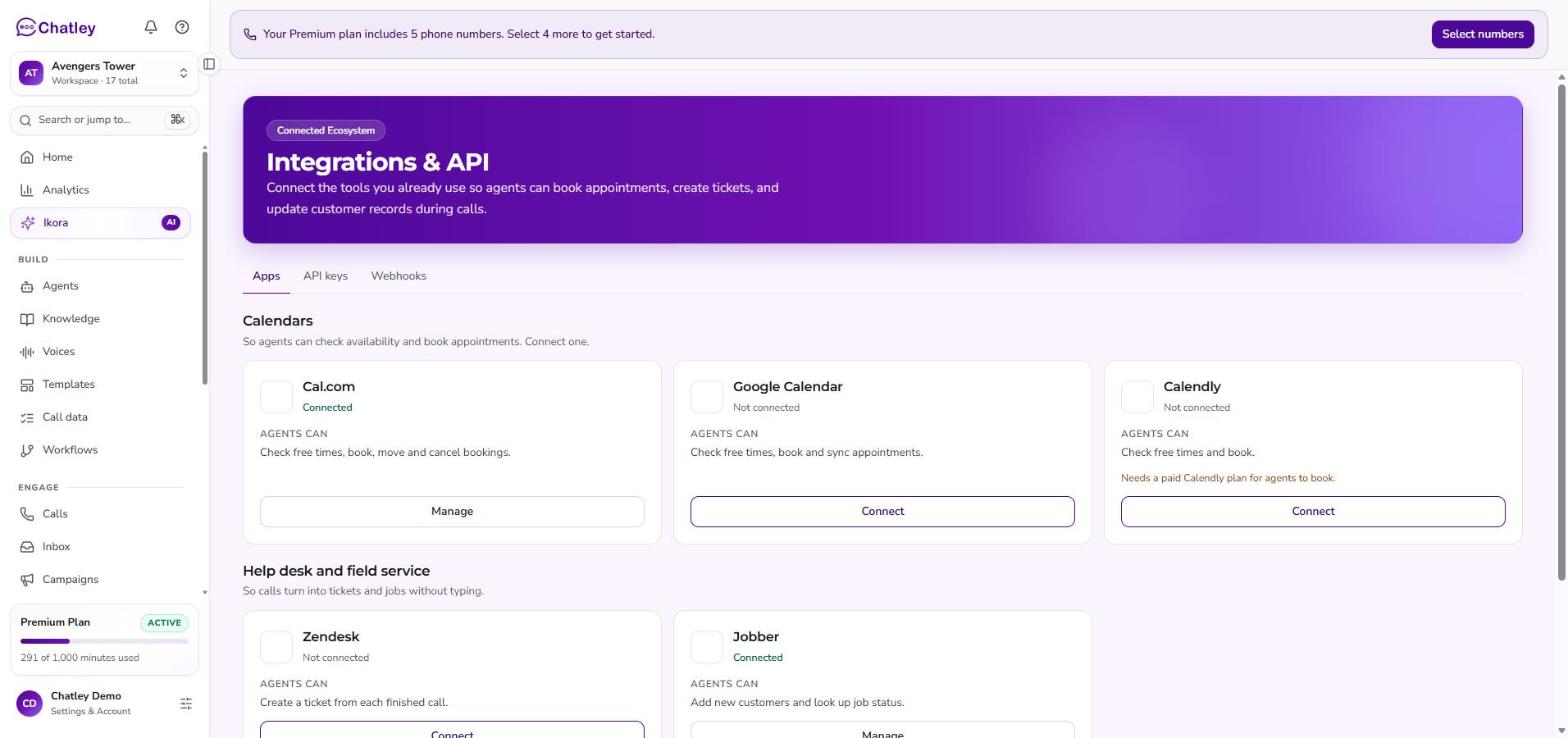
The Integrations page.
Around the page
The page has three tabs:
| Tab | What it holds |
|---|---|
| Apps | Connect services. Cards are grouped as Calendars and Help desk and field service. |
| API keys | Create and manage your own Chatley API keys. |
| Webhooks | Send events to your own endpoint. See Webhooks. |
Available integrations
Scheduling
Only one calendar can be connected to a workspace at a time.
| Integration | What it's for |
|---|---|
| Cal.com | Book appointments into your Cal.com calendar. |
| Google Calendar | Book appointments and read availability from Google Calendar. |
| Calendly | Create Calendly bookings. Needs a paid Calendly plan. |
Help desk and field service
| Integration | What it's for |
|---|---|
| Zendesk | Turn finished calls into support tickets. |
| Jobber | Create customers and check jobs in Jobber. |
| Zapier | Send what your agents capture into thousands of other apps. |
| Salesforce | CRM — coming soon. |
Bring your own provider
| Integration | What it's for |
|---|---|
| Twilio | Use phone numbers from your own Twilio account. |
| ElevenLabs | Use voices from your own ElevenLabs account. |
| OpenAI | Run your agents against your own OpenAI account. |
| Stripe | For partner accounts: create pricing plans for your sub-accounts. |
Connect an integration
- Open Integrations under Setup in your workspace.
- Select the card for the service you want. Each card opens with a short description of what it does.
- Connect it. What this asks for depends on the service — each page above lists the exact fields, whether that is a sign-in at the provider, an API key, or a subdomain.
- Once it succeeds, the card shows as connected, and the modal shows what the connection is using and when it was made.
Disconnect from the same card whenever you want to revoke the connection.
Credentials are stored on the Chatley server, not in your browser. Where a provider offers a limited-scope key, use that rather than a full-access one.
Calendars: one at a time
You can have one calendar connected at a time — Cal.com, Google Calendar, or Calendly, not two together. If you try to connect a second one, Chatley asks you to disconnect the existing calendar first.
Switching calendars is therefore a two-step job: disconnect the current one, then connect the new one. Do it between campaigns rather than mid-campaign, so your agents are never left without a calendar to book into.
Booking appointments
Once a calendar is connected, an agent's Appointment tool can create bookings during a call, and every booking shows up in Appointments.
Zendesk tickets
With Zendesk connected, Chatley can open a ticket from a finished conversation so your support team picks up where the agent left off. You choose when that happens:
- Create a ticket for every conversation — nothing gets missed, at the cost of more tickets.
- Only outside business hours — calls your team could not have answered live become tickets. You set the business hours alongside this option.
- Only when the AI can't resolve it — the agent handles what it can, and only the rest reaches your queue.
Developer API keys
The Integrations area is also where you manage your own Chatley API keys — create, view, edit, and delete the keys you build against Chatley with.
Treat a key like a password: store it somewhere safe, and delete any key that may have been exposed. A key cannot be recovered after it is created, so if you lose one, delete it and create a replacement.
See the Developer API for the base URL, authentication, endpoints, and full request examples.
Troubleshooting
| Problem | What to check |
|---|---|
| Sign-in didn't connect | Finish the provider's sign-in and allow the permissions it asks for; you should land back on Chatley. |
| "Disconnect your existing calendar" | Only one calendar can be connected at a time. Disconnect the current one first. |
| Calendly bookings fail | Calendly requires a paid plan for bookings made through its API. |
| Zendesk won't connect | Check the subdomain is just the name — yourcompany, not the full URL. If Chatley says Zendesk isn't configured for your organization, contact support. |
| A card shows disconnected | Reconnect from the card. A key or approval may have expired or been revoked at the provider. |
| Lost an API key | Keys cannot be recovered. Delete it and create a new one. |
Next steps
- Appointments — every booking your agents make.
- Webhooks — send captured leads to your own endpoint.