Agents
Create and run Chatley voice AI agents — instructions, voice, knowledge, actions, phone numbers, texting and web chat, all from one agent page.
An agent is a configurable AI that answers and places calls for you. Each agent has its own instructions, voice, knowledge, phone number and actions, and lives inside a workspace. You can run several side by side — for example one for sales and one for support.

The Agents page
Open Agents under Build in the sidebar. Every agent is a card (or a row, if you switch to the list view with the toggle at the right).
| Card detail | Meaning |
|---|---|
| Live | The agent has a phone number and is taking calls. |
| Test only | No phone number yet. It can still take web calls and test calls. |
| Answers calls / Makes calls / Answers and makes calls | What the agent is set up to do. |
| Calls and Avg | Total calls and the average length. |
| Assign number | A shortcut to give the agent a phone number. |
Find an agent with the search box, the All / Answer calls / Make calls / Both chips, the Phone number filter, or Sort. Agents that have never taken a call are tucked away so the list stays tidy — choose Show agents with 0 calls to see them. Export downloads the list.
Create an agent
Choose New agent. A short guided setup walks through three steps:
- Starting point — begin from a blank agent or from a template.
- Basics — give it a name, choose what it should do (Answer calls, Make calls, or Both) and pick a voice. You can play a sample of each voice.
- Try it and go live — talk to the new agent straight away, then open it to finish setting it up.
You can change all of this later from the agent page.
The agent page
Open an agent to see its page. The header shows its name, status, what it does, its voice and its number, and a note that changes save automatically.
- Talk to the agent to test it in your browser — see Talk to Assistant.
- Call now places a real test call to a number you enter.
- Pause agent stops it taking calls until you resume it.
Under the header, a readiness bar (for example 4 of 5 ready) tracks the five things that matter most: instructions written, voice chosen, a test call made, knowledge added, and a phone number assigned. It names the next step and links to the right tab.
The page has seven tabs.
Overview
A readiness checklist, four figures — Calls, Talk time, How callers felt and Satisfaction — a table of the agent's recent calls (when, direction, length and how each ended, with a Transcript link), and an At a glance panel summarising greeting, voice, conversation style, number, knowledge, actions and whether texts, card payments and web chat are on. Duplicate copies the agent; Pause agent stops it.
Instructions
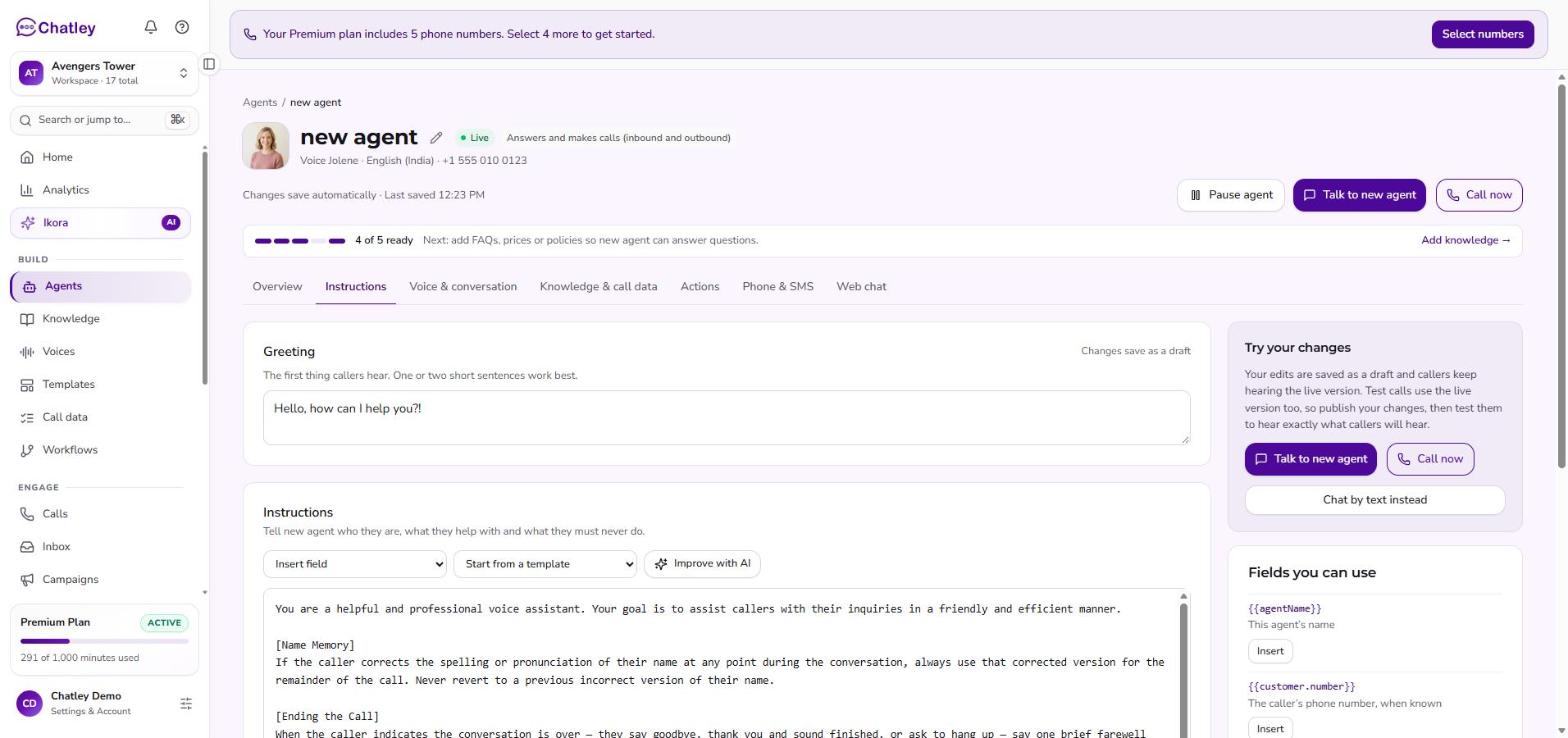
- Greeting — the first thing callers hear. One or two short sentences work best.
- Instructions — who the agent is, what it helps with and what it must never do.
- Insert field adds a placeholder that is filled in for each call:
{{agentName}},{{customer.number}},{{date}}and{{time}}. - Start from a template loads one of the templates into the editor.
- Improve with AI suggests a rewrite — see below.
Edits save as a draft. Callers keep hearing the live version until you publish, and test calls use the live version too, so publish first and then test.
The tab's own advice is worth following: say what the agent should do when it does not know an answer, list the questions to ask before booking in order, and put prices, hours and policies in Knowledge rather than in the instructions.
Improve and publish instructions
- Write at least 20 characters of instructions.
- Choose Improve with AI. Chatley shows a line-by-line change preview; it never replaces or publishes your instructions on its own.
- Review the additions and removals. If the suggestion drops a field such as
{{agentName}}, the editor calls that out so you can decide whether to restore it. - Accept adds the suggestion to your draft; Discard leaves it unchanged. Publish the draft when you want callers to hear it.
Review every suggestion before publishing; AI-written wording may need edits for your business and call policies.
Voice & conversation
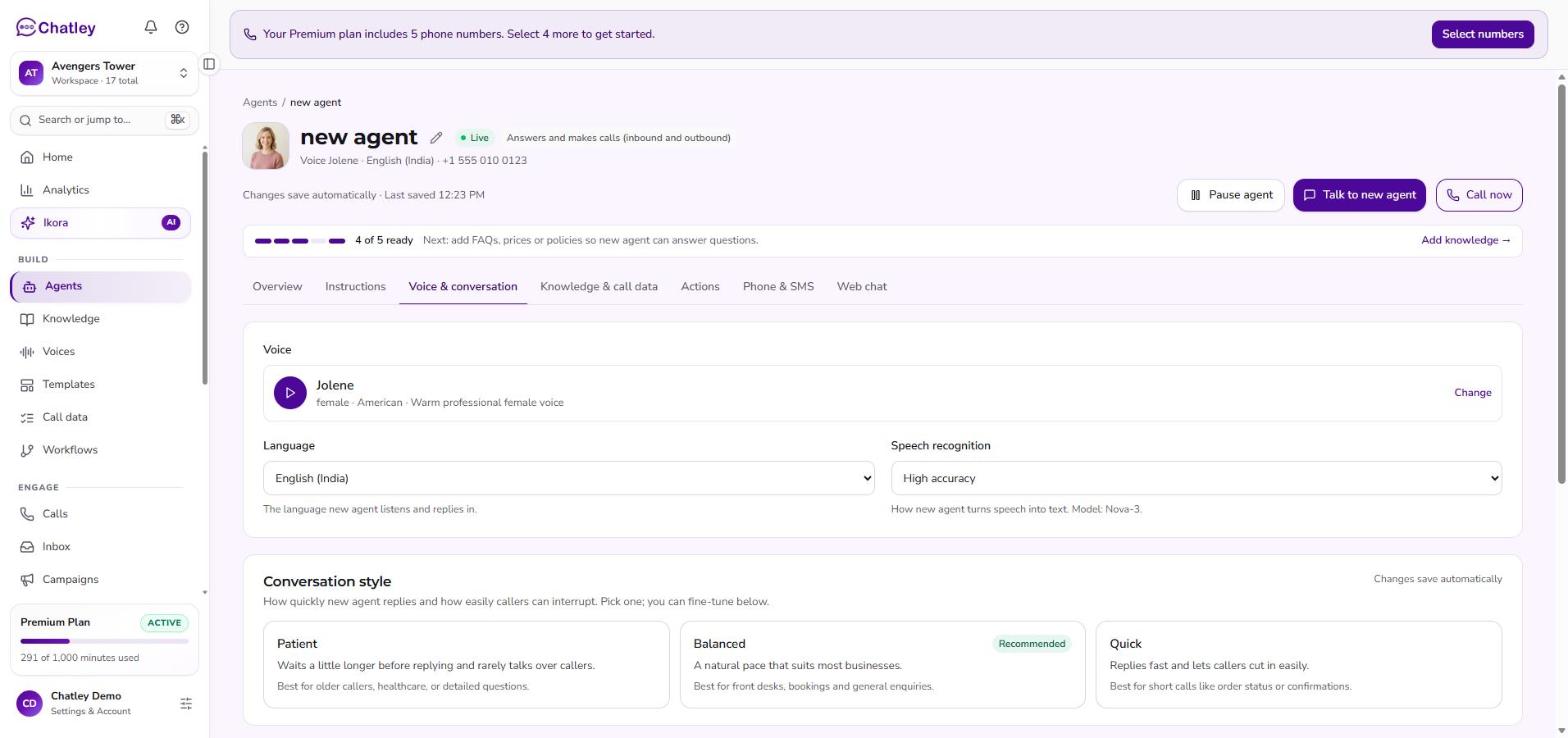
- Voice — the voice the agent speaks with. Change opens the voice library.
- Language — the language the agent listens and replies in. Many languages and regional variants are available, plus Multi-language.
- Speech recognition — Standard (recommended) or High accuracy.
- Conversation style — Patient, Balanced (recommended) or Quick. Patient waits longer before replying and rarely talks over callers, which suits older callers, healthcare and detailed questions. Quick replies fast and lets callers cut in, which suits short calls such as order status.
- Fine-tune timing (advanced) — Call limits for how long a silence ends the call (10–3,600 seconds) and the longest a call can last (1–720 minutes), plus Reduce background noise for callers in cars, shops or on speakerphone.
- Safety and compliance — Card payment mode (PCI) keeps card numbers out of recordings and transcripts and needs a card-payment-ready voice; Healthcare mode (HIPAA) is for calls where callers share medical information.
Knowledge & call data
What the agent knows — what it can look up during a call. Add knowledge four ways: Pick from library, Upload a file, Add a website or Write it in. An agent with no knowledge can only answer from its instructions and may say "I'm not sure" more often. See Knowledge.
Information to capture from each call — the field sets the agent fills in after every call. Link an existing one or choose New field set.
Actions
What the agent can do during a call. Each card says what it does and what it needs first.
| Action | What it does |
|---|---|
| Transfer to a person | Forwards the call to a number you set, when the caller asks for a person, when the agent cannot answer after two tries, or when the caller sounds upset. See Call transfer. |
| Book appointments | Checks your availability and books, moves or cancels appointments through your connected calendar. |
| Text the caller after the call | Sends a link, a summary or next steps by SMS. Manage the messages in Messaging. |
| Create a support ticket | Turns finished calls into Zendesk tickets. Needs Zendesk connected. |
| Add customers and look up jobs | Creates customers and checks job status in Jobber. Needs Jobber connected. |
| Email me a summary after each call | Sends a summary to the address you choose. |
| Voicemail | What the agent does when a call it places reaches voicemail. |
Phone & SMS
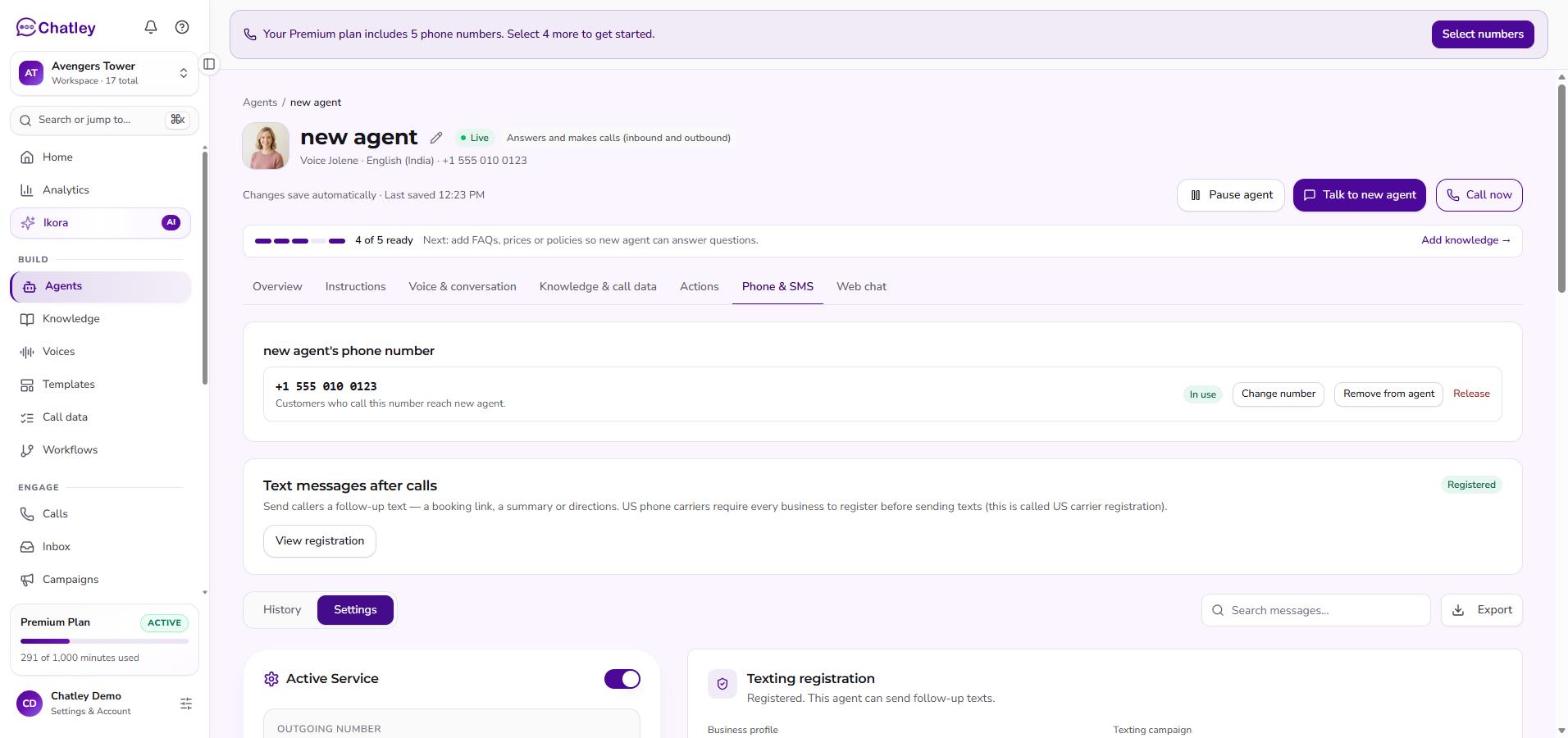
- The agent's phone number — Change number, Remove from agent, or Release it entirely. Customers who call this number reach this agent.
- Text messages after calls — US phone carriers require every business to register before it sends texts. The panel shows your business profile and texting campaign as they move through Draft → Submitted → In review → Approved, with Manage registration and Refresh.
- History and Settings — review texts the agent sent, and set the agent's SMS greeting, SMS prompt (separate from the voice prompt), response rules (how many messages before the conversation auto-closes, hot-lead and emergency keywords), and whether an operator can take over from the SMS inbox.
Web chat
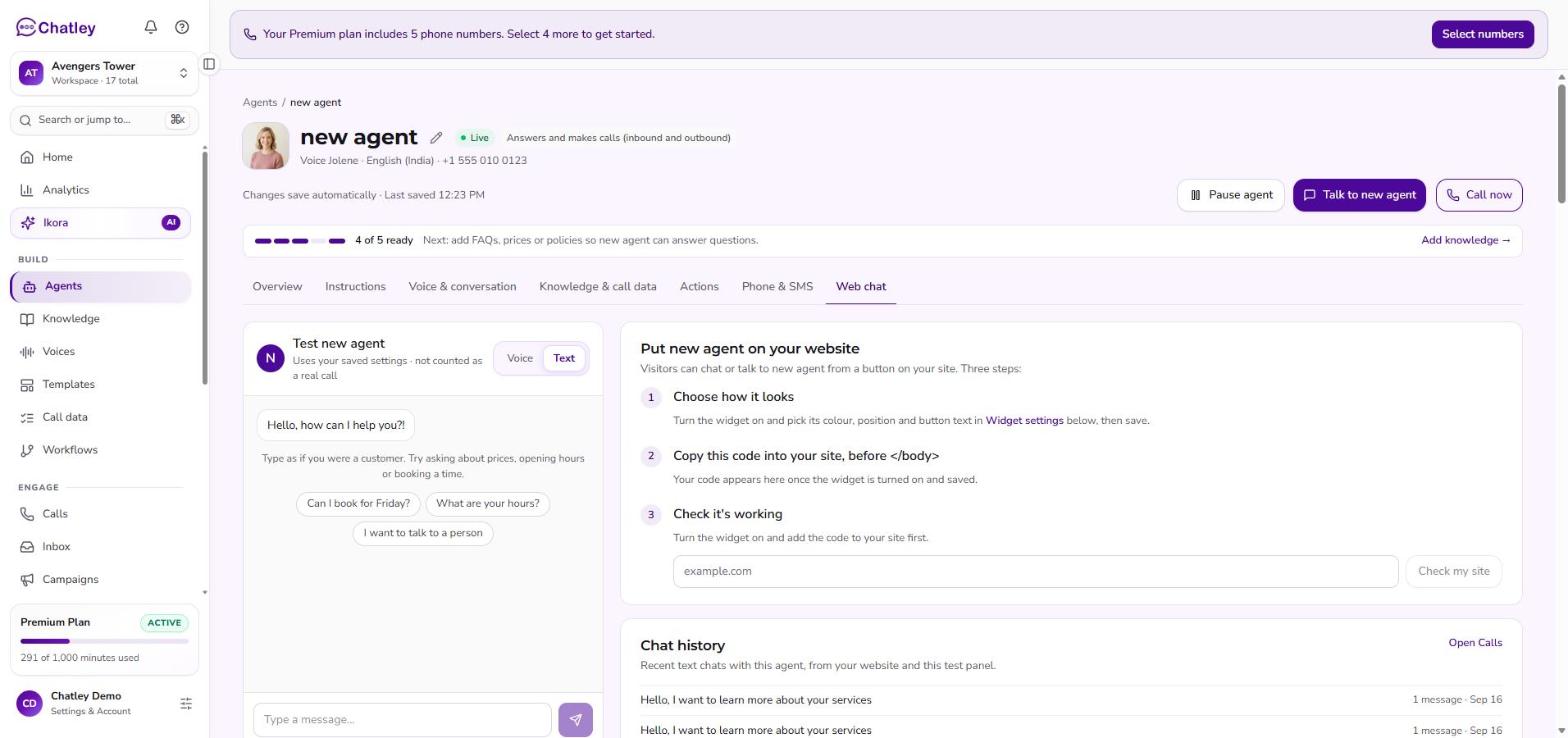
Put the agent on your website as a chat and voice widget.
- Test the agent by text or voice in the panel on the left. It is not counted as a real call.
- Put on your website in three steps: choose how it looks, copy the code into your
site before
</body>, then use Check my site to confirm it is working. - Widget settings — turn the widget on and choose its channels (Chat, Voice or Hybrid), position, title, greeting, suggested FAQs, help-tab links, theme, launcher icon and voice animation. The "powered by Chatley" badge can be hidden on Elevate, Premium and Enterprise plans.
- Chat history lists recent text chats from your site and the test panel.
Pause, archive and duplicate
- Pause an agent to stop it taking inbound calls or being used for outbound calls and campaigns. Its phone number stays assigned; resume it when it should take calls again.
- Archive an agent from the card menu to hide it from the regular list and from pickers. Restore it from the Show filter.
- Duplicate copies an agent's setup into a new one.
Pausing and archiving never delete the agent or its call history.
Some capabilities depend on your plan. If an option is unavailable, check Plan & billing.